Connect Caliber to ChatGPT and Claude
The Caliber MCP server lets your AI assistant read your workouts, PRs, plans, body stats, nutrition and steps, so you can ask real questions about your training and get answers from your actual numbers.
What is the Caliber MCP server?
The Caliber MCP server is Caliber's official connector for AI assistants. It is built on the Model Context Protocol (MCP), an open standard that lets tools like ChatGPT and Claude read data from an app you've authorized. Once connected, your assistant can look at your Caliber training history the same way you can in the app, and answer questions about it in plain language.
What can you ask once it's connected?
Here are some examples of the types of questions you can ask.
Review your training
Weekly check-in
Plan and program
Body and nutrition
Cardio and steps
Bigger picture
What data can the AI access?
Each item below is a separate tool the assistant can call. It only reads what your question needs.
| Data | What's included | Tool |
|---|---|---|
| Completed workouts | Every logged workout in a date range: exercises, sets, reps, weights, and how exercises were grouped into supersets. | getWorkouts |
| Exercise session history | All your sessions for a specific exercise, so the AI can chart one lift over time. | getExerciseSessions |
| Personal records | Per exercise: max weight, estimated 1RM, max volume, max reps, max time. | getPersonalRecords |
| Workout plans | Your plans and workout templates with targets: sets, rep ranges, time, rest periods, supersets. | getWorkoutPlans |
| Body stats | Weight, body fat and waist measurements over time. | getBodyStats |
| Nutrition | Daily calories, protein, carbs and fat, plus your current targets, macro split, nutrition phase and 7-day averages. | getNutrition, getNutritionTargets |
| Steps | Daily step counts. | getSteps |
| Cardio | Cardio activities, logged manually or imported. | getCardioActivities |
| Calendar | A day-by-day overview of what was scheduled and what was completed. | getCalendarOverview |
| Exercise library | Search Caliber's exercise library by name, muscle group and equipment. | searchExercises |
| Unit preferences | Metric or imperial. All numbers are converted to your setting. | getUnitPreferences |
How do I connect Caliber to ChatGPT?
Caliber is listed in the ChatGPT apps directory. It takes about two minutes.
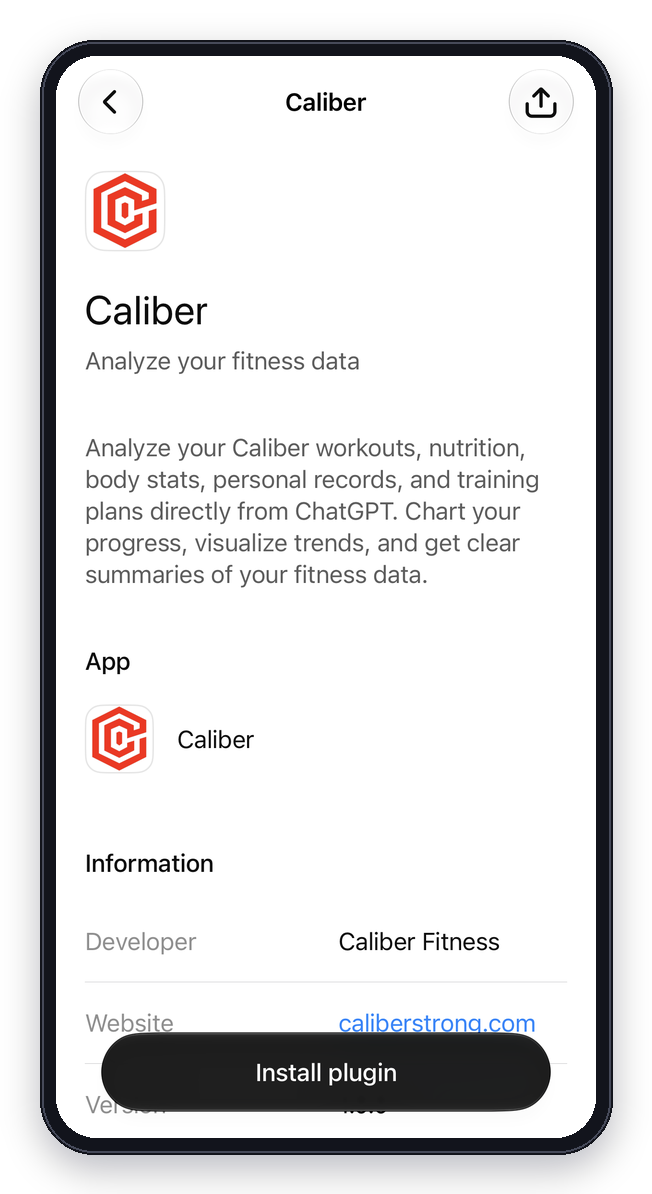
1. Go to the Caliber plugin page and tap Install plugin.
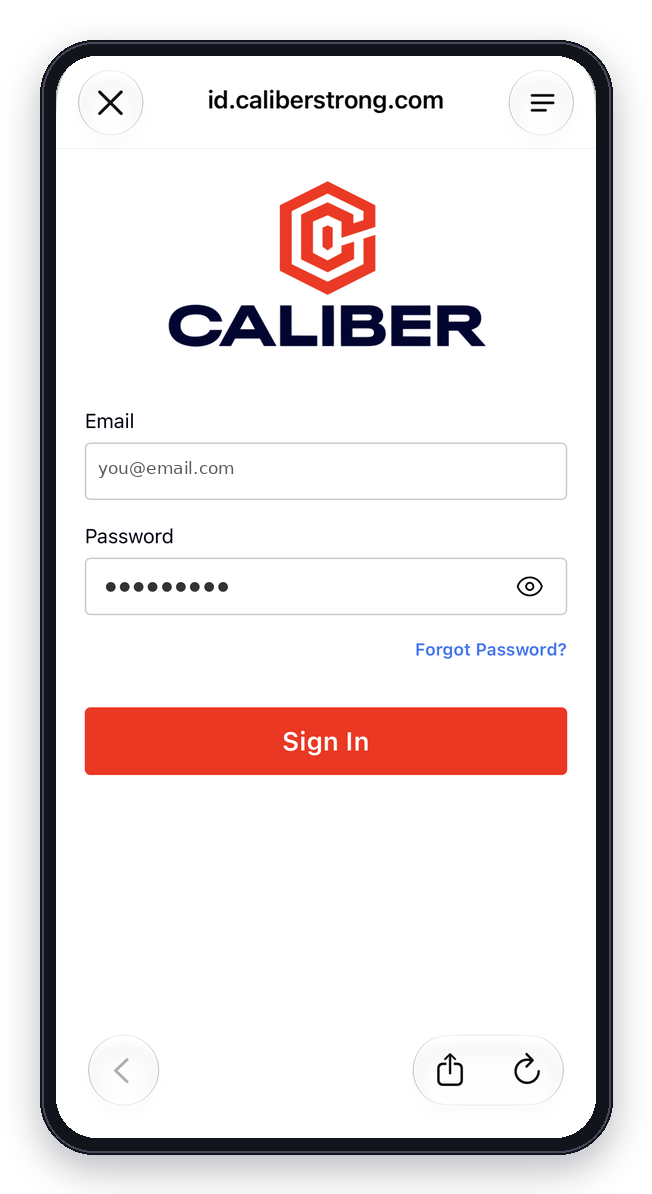
2. Authenticate with your Caliber account.
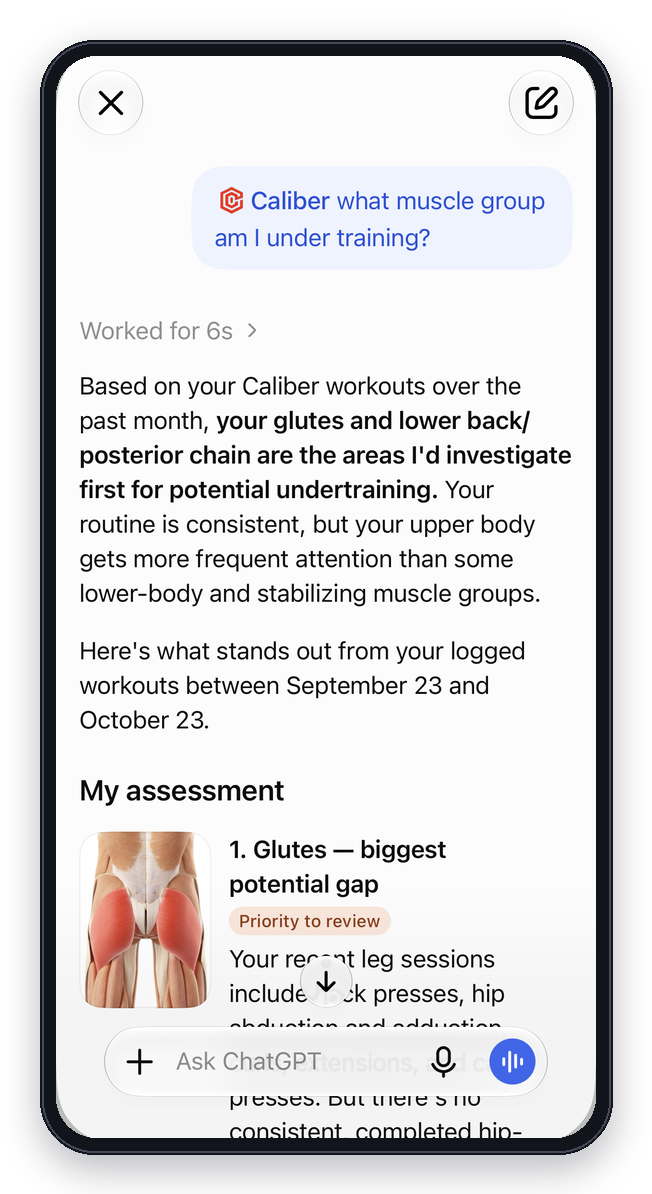
3. Start chatting.
How do I connect Caliber to Claude?
Add Caliber as a custom connector using the server URL below.
- On claude.ai, go to Customize → Connectors, click + Add, then Add custom connector.
- Name it Caliber, enter
https://api.caliberstrong.com/mcp, and sign in with your Caliber account. (If Claude asks for an OAuth client ID, entercaliber-mcpand leave the secret blank.) - In a chat, open + → Connectors, toggle Caliber on, and ask about your training.
New to Caliber?
Get the free app, log a few workouts, and connect it to your AI the same day.
Frequently Asked Questions
The most common questions about connecting Caliber to your AI.
What is the Caliber MCP server?
It is Caliber's official connector for AI assistants, built on the Model Context Protocol (MCP). Once you connect it, ChatGPT or Claude can read your Caliber workouts, exercise history, personal records, workout plans, body stats, nutrition, steps and cardio, and answer questions about them. Access is read-only.
Which AI assistants work with Caliber?
ChatGPT (Caliber is in the ChatGPT apps directory) and Claude (add it as a custom connector using the server URL).
Do I need a paid Caliber, ChatGPT or Claude plan?
No Caliber subscription is required; the MCP server works with free Caliber accounts. On the AI side, ChatGPT apps are available on most ChatGPT plans, and Claude allows custom connectors on Free (one connector), Pro, Max, Team and Enterprise plans. Check each assistant's help center for the current plan rules in your region.
Can the AI change my workouts, plan or nutrition targets?
No. The Caliber MCP server is read-only. It cannot create, edit or delete anything in your Caliber account. It can only read your own data, and you can disconnect it at any time.
What data does the AI see?
Only what you ask about: completed workouts (exercises, sets, reps, weights, supersets), exercise session history, personal records, workout plans and targets, body stats (weight, body fat, waist), daily steps, daily nutrition and targets with 7-day averages, cardio activities, your day-by-day calendar, and your unit preferences. Measurements are converted to your preferred units.
Does it work on my phone?
Yes. Once connected, Caliber works in the ChatGPT and Claude mobile apps as well as on the web and desktop, because the connection lives on your AI account, not on one device.
The AI says it can't access my Caliber data. What should I do?
Disconnect and reconnect the Caliber integration, make sure you signed in with the same email you use in the Caliber app, and confirm Caliber is turned on for the current chat. If the numbers come back in the wrong units, check your unit settings in the Caliber app. Full setup details are in our help center, or email support@caliberstrong.com.
What is MCP?
MCP (Model Context Protocol) is an open standard that lets AI assistants securely connect to apps and read your data with your permission.
Is Caliber adding AI features to the app?
No. Caliber doesn't use AI inside the app, and our 1-on-1 coaching is done by human coaches. We think of the MCP server the way we think of CSV export: another way for you to get at your own data without restriction, in a format that happens to work with the AI tools you already use. If you don't use AI, nothing changes for you.
Can I get direct API access instead?
Not yet. The MCP server is currently the only external way to read your Caliber data programmatically. You can vote for a public API on our feedback board.
Ask your AI about your actual training.
Connect Caliber to ChatGPT or Claude in two minutes.